This guide helps you create WhatsApp message templates with rich media in Affinect. Media-based messages—featuring images, videos, GIFs, or documents—are perfect for capturing attention, showcasing offers, and driving higher engagement while keeping your communication interactive and visually appealing.
Affinect
Navigate to WhatsApp Templates
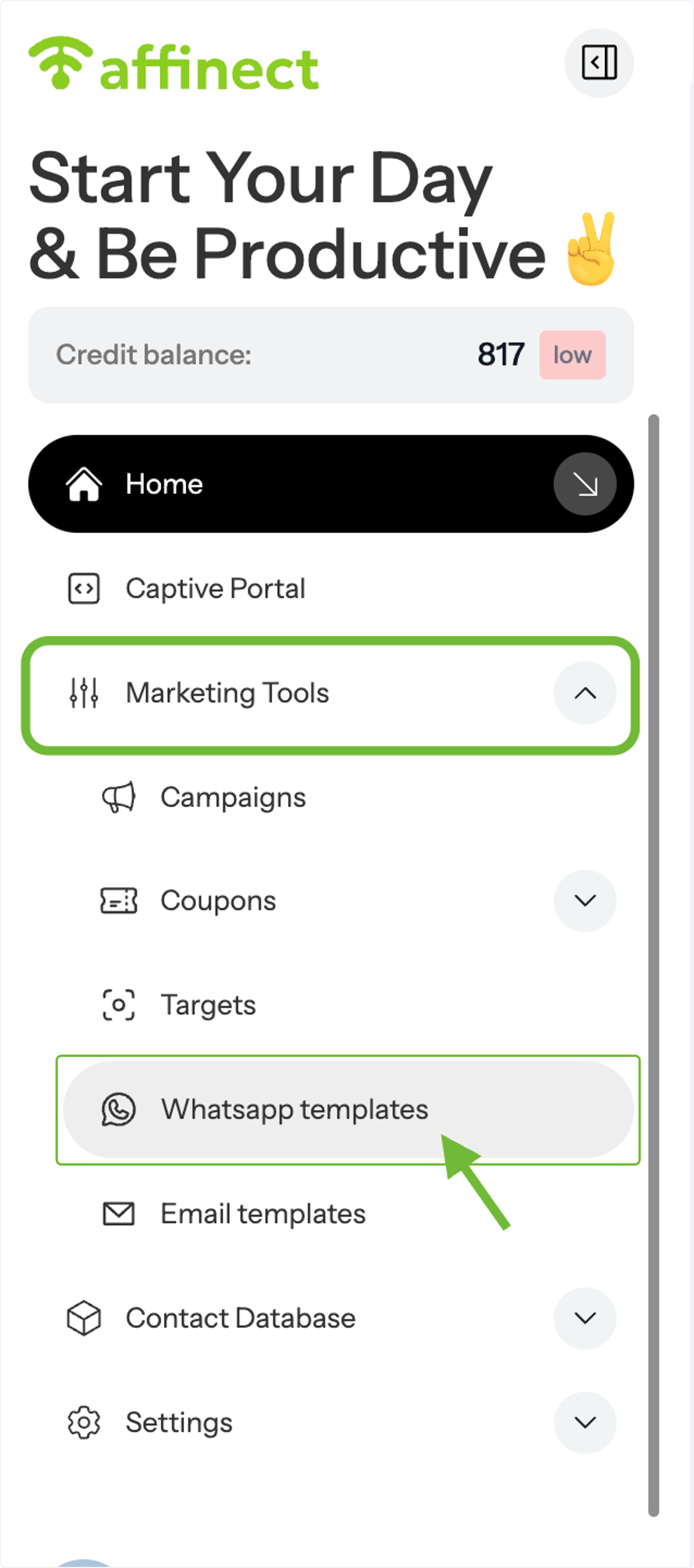
Go to Marketing Tools and select WhatsApp Templates.
Create or Edit a Template
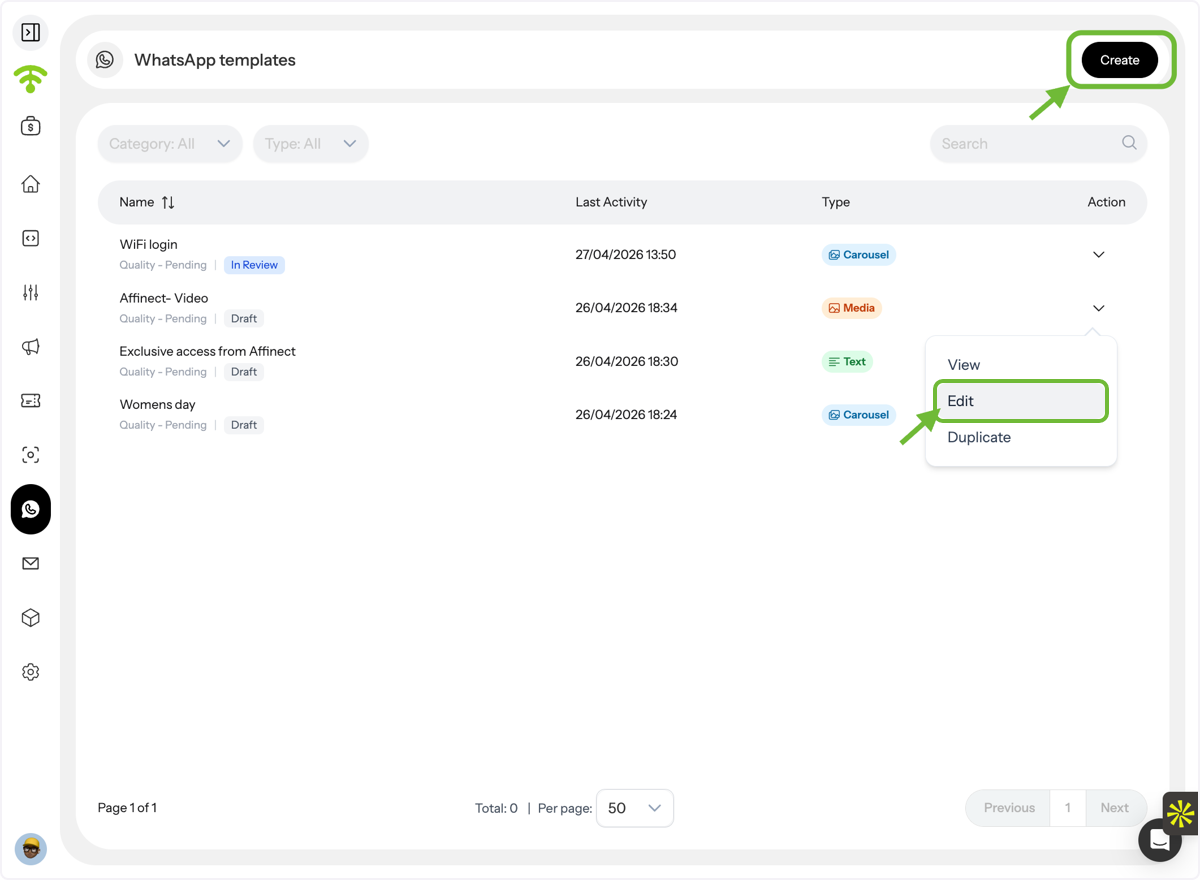
From the templates list:
- Click Edit to update an existing draft, or
- Click Create to start a new template
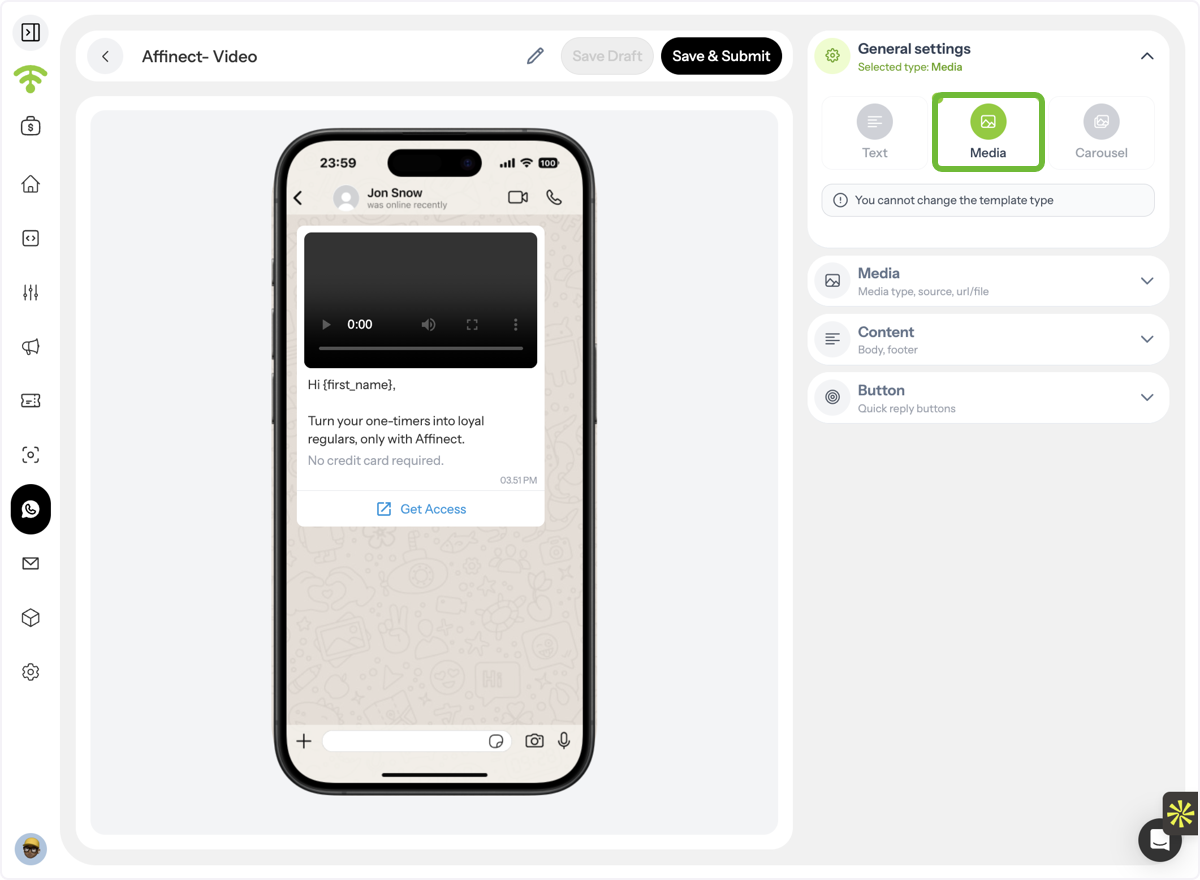
Select Media Format
Choose the Media format for your message template.
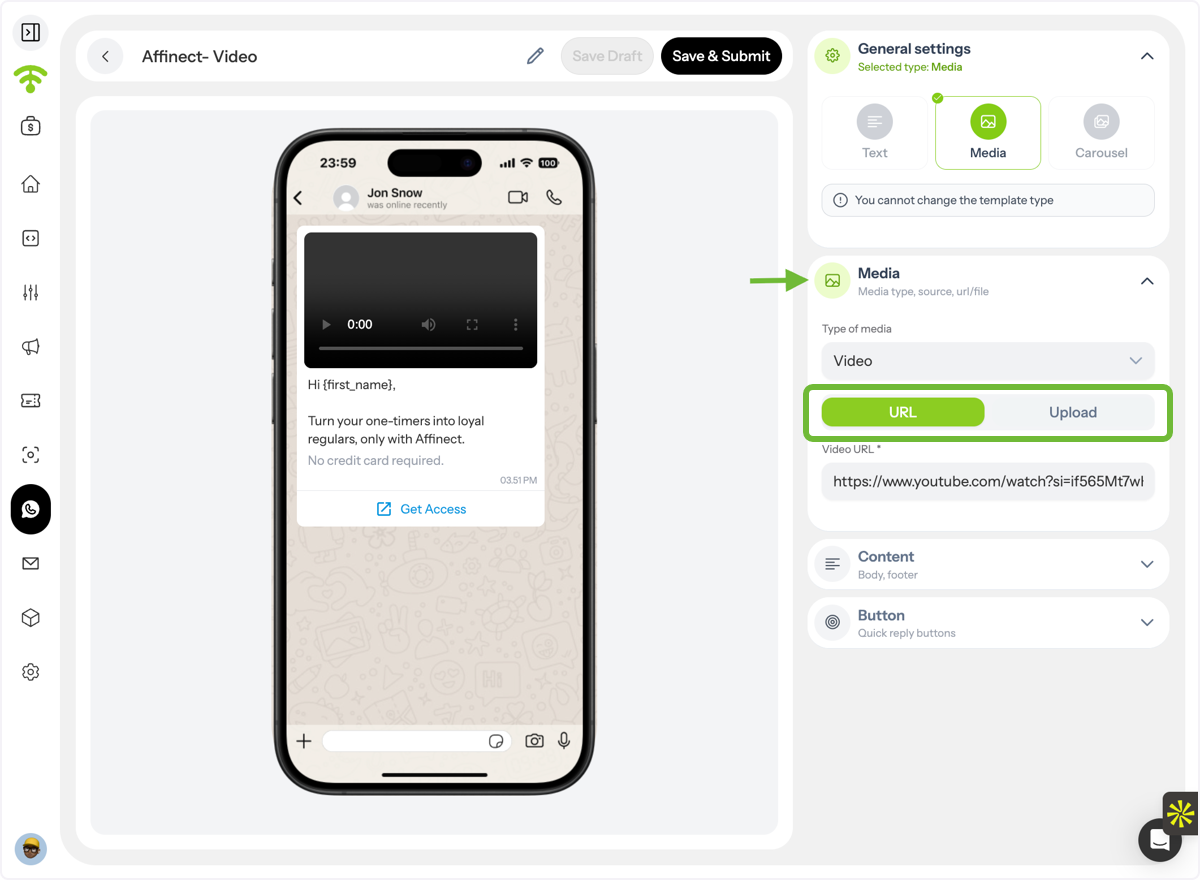
Upload or Add Media
Select the type of media you want to include:
- Image
- GIF
- Video
- Document
*
You can either upload the file directly or add a URL.
Add Message Content
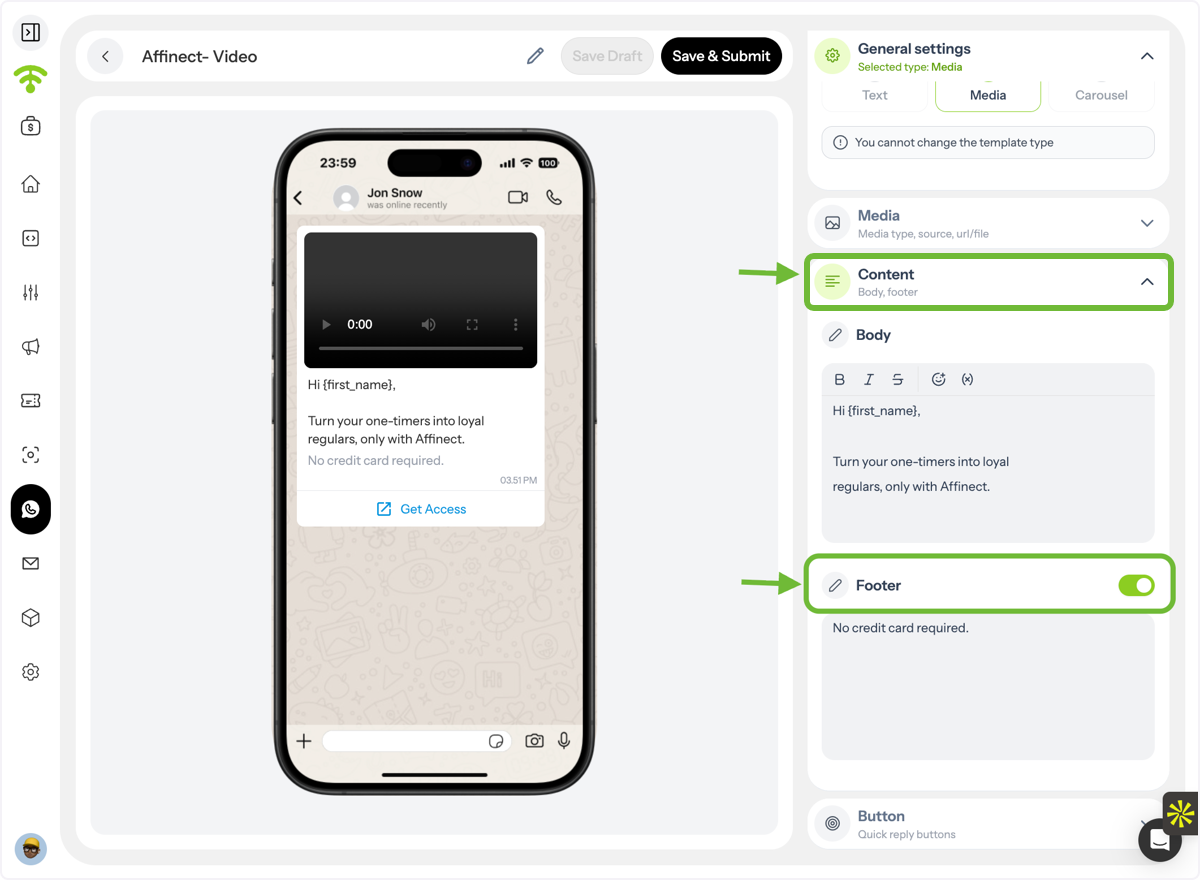
Enter your body text and optionally a Fußzeile.
You can enhance and personalize your message using:
- Text styles
- Emojis
- Personalization variables (e.g., name, email, etc.)
Add Call-to-Action Buttons
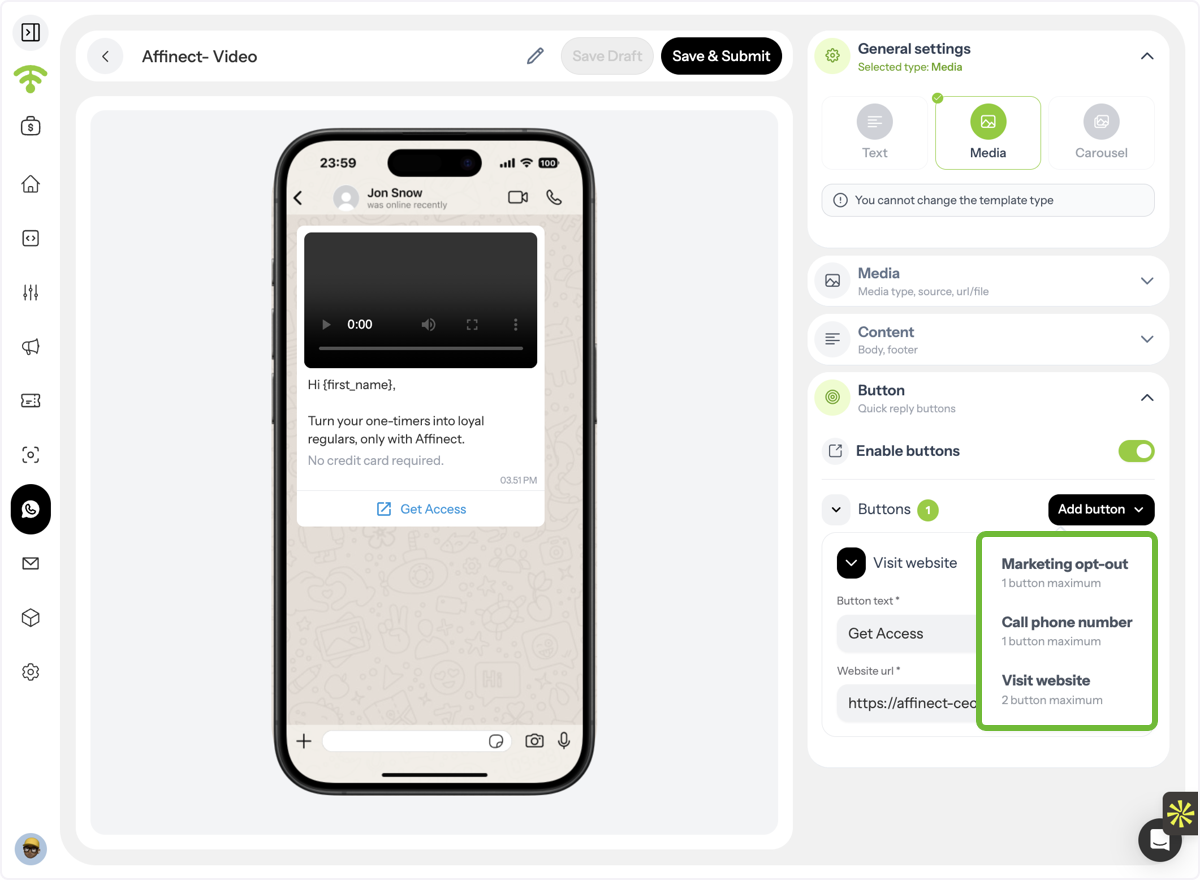
Include buttons to drive action:
- Phone number (click-to-call)
- Website link
Ensure Compliance
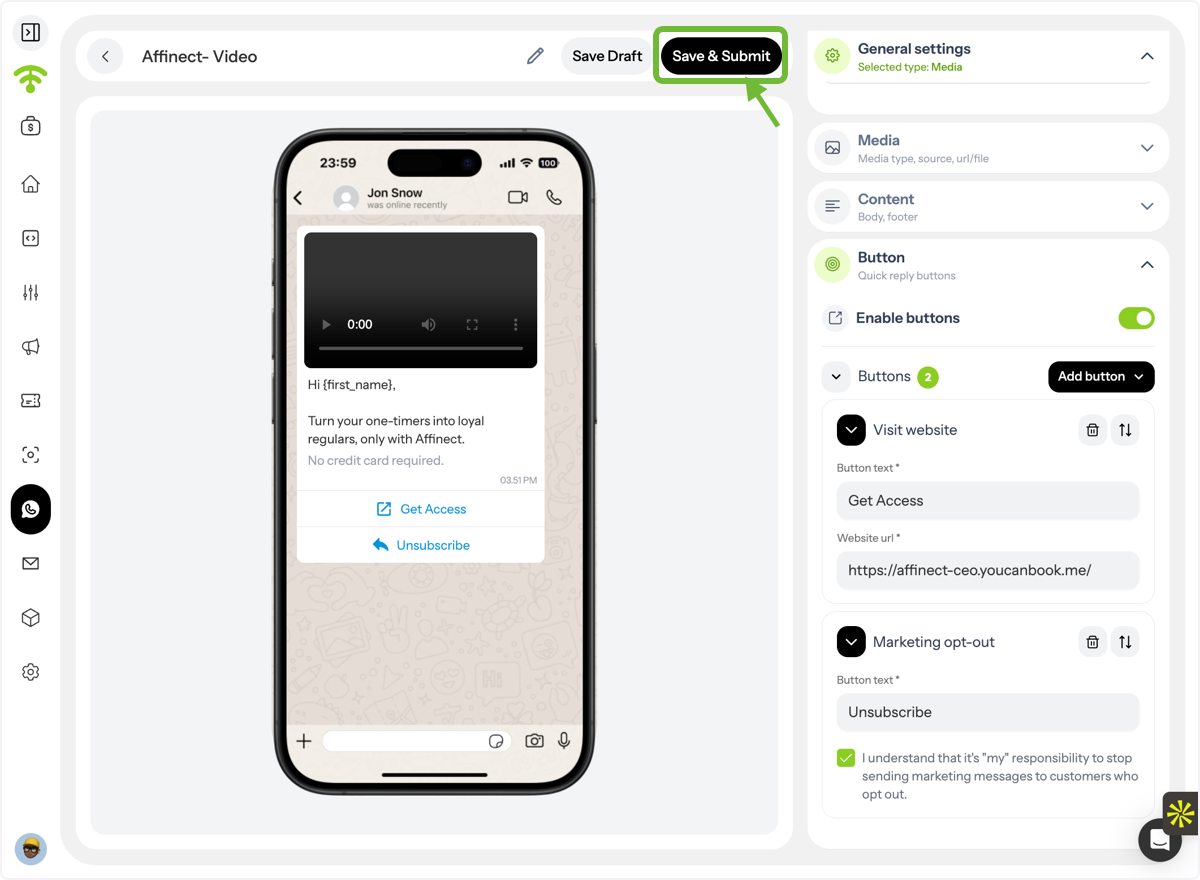
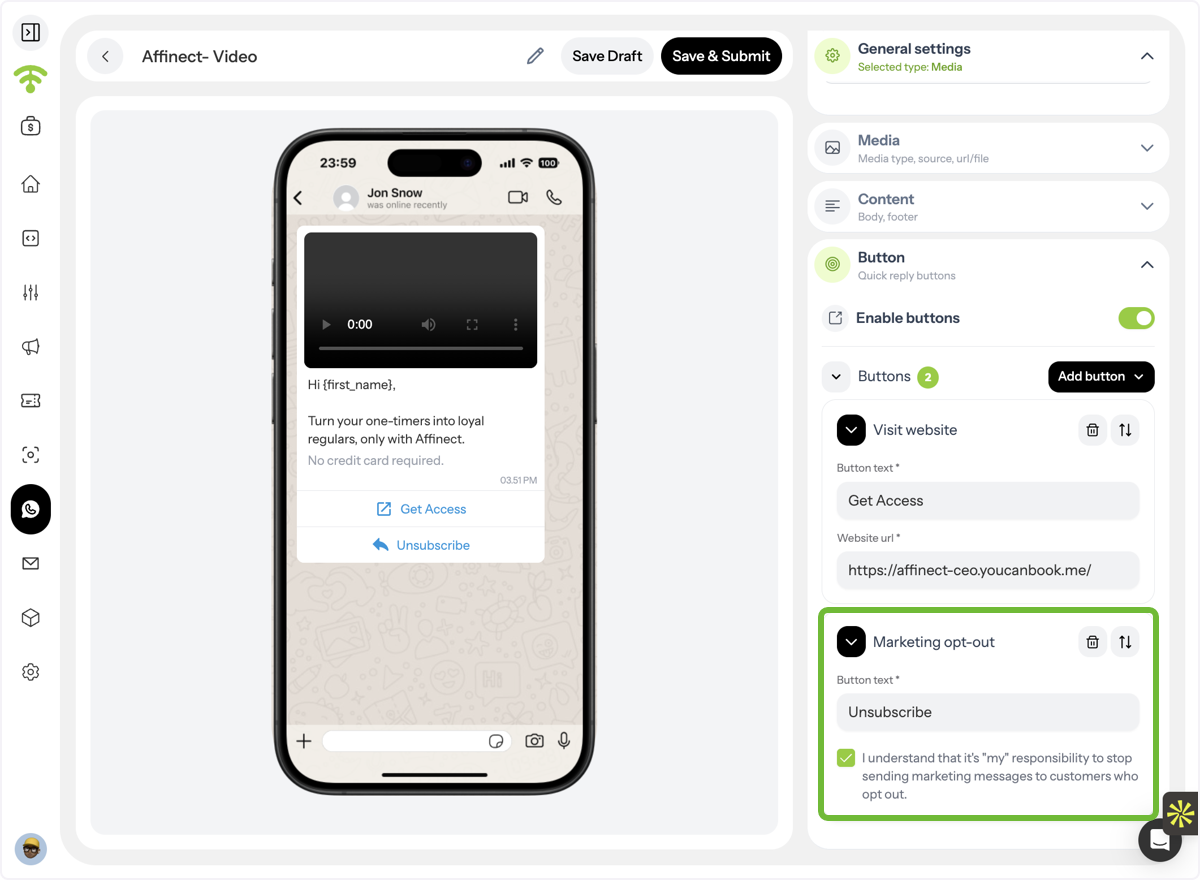
Always include a mandatory marketing opt-out button in your message.
Submit for Approval
Click Save & Submit to send your template to Meta for approval.